
Members and roles
The Family plan lets up to 5 users share one organization. Everyone sees the same data. Open it from the account menu and choose Members.
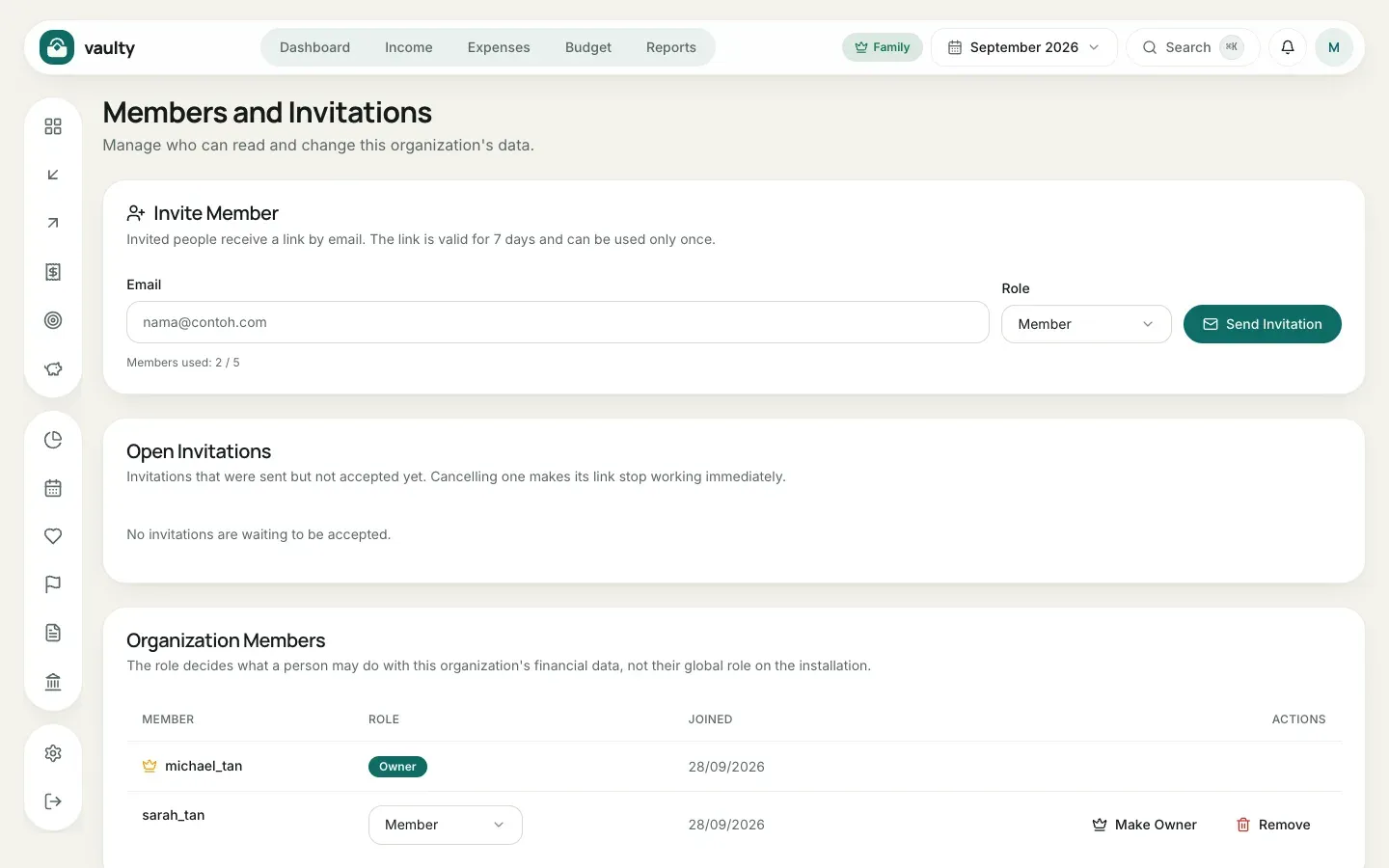
Inviting a member
Section titled “Inviting a member”- Enter the Email of the person you are inviting.
- Choose a Role.
- Click Send Invitation.
The person receives an email with a link that is valid for 7 days and works only once. Invitations not yet accepted show under Open Invitations and can be canceled (the link stops working right away). The counter below the form shows the quota, for example “2 / 5”.
| Role | Can |
|---|---|
| Owner | everything, including the subscription, AI agent access, and deleting the organization |
| Admin | record and change data, manage members, restore backups |
| Member | read, record, change, and delete financial data |
| Viewer | read only |
Changing or removing a member
Section titled “Changing or removing a member”In the Organization Members table, change a role with the dropdown, or click Remove to take someone out. Make Owner transfers ownership of the organization to that member.
A removed member loses access right away, including any AI agent tokens they created.