
Account settings
Open Settings from the gear icon on the left or the account menu.
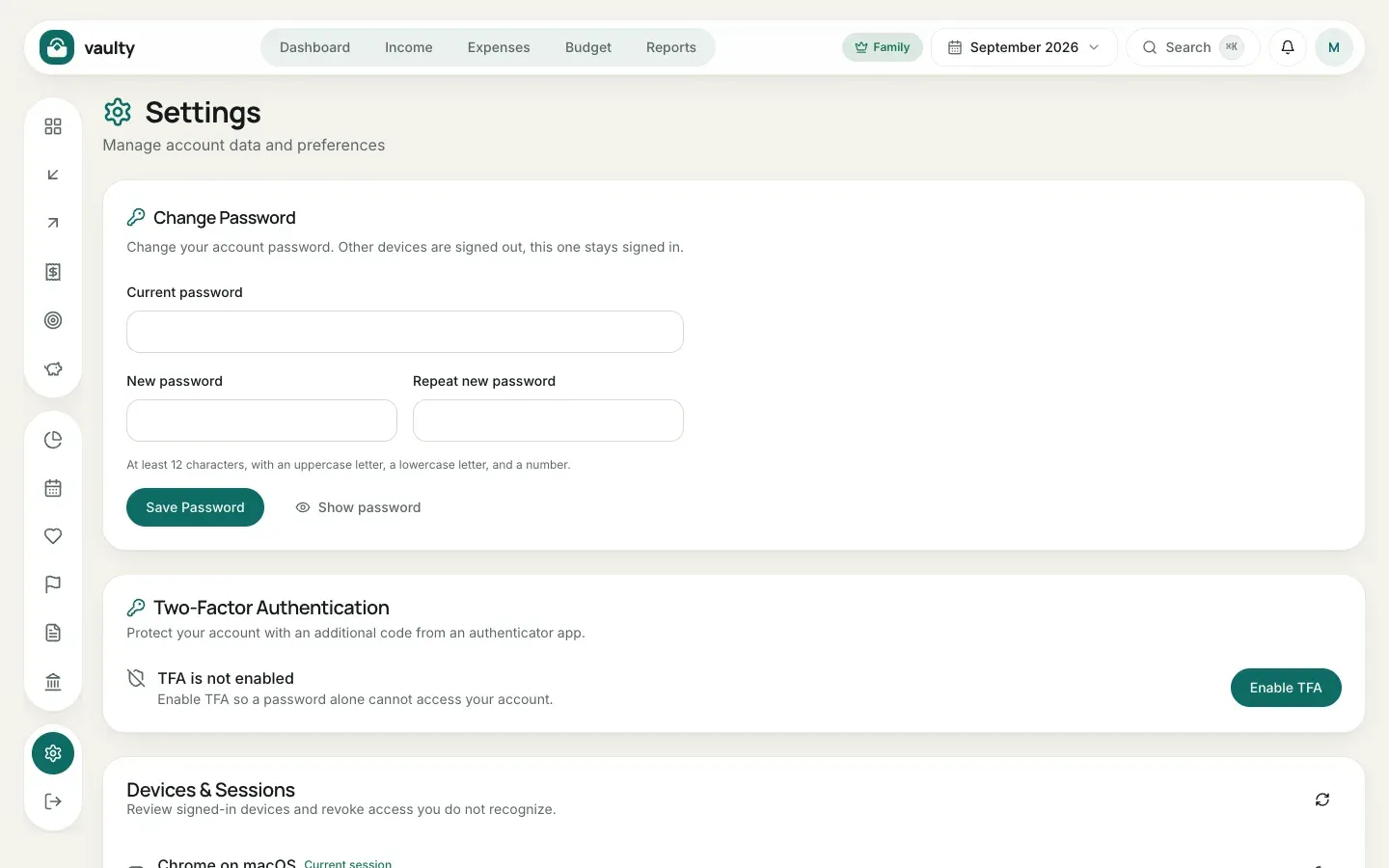
Change password
Section titled “Change password”Enter your current password, then the new one twice (at least 12 characters with an uppercase letter, a lowercase letter, and a number). Other devices are signed out automatically, this device stays signed in.
Two-step verification (Personal and above)
Section titled “Two-step verification (Personal and above)”Click Enable 2FA, scan the QR code with an authenticator app (the account is named “Vaulty”), enter the 6-digit code, and keep the recovery codes somewhere safe. From then on every sign-in needs a code from the app.
Devices and sessions
Section titled “Devices and sessions”The list of devices currently signed in. Click the sign-out icon next to a device you do not recognize to remove it.
Install as an app
Section titled “Install as an app”The Install app card helps you add Vaulty to your phone’s home screen or your computer. On iPhone, follow the manual instructions shown.
AI agent access (MCP)
Section titled “AI agent access (MCP)”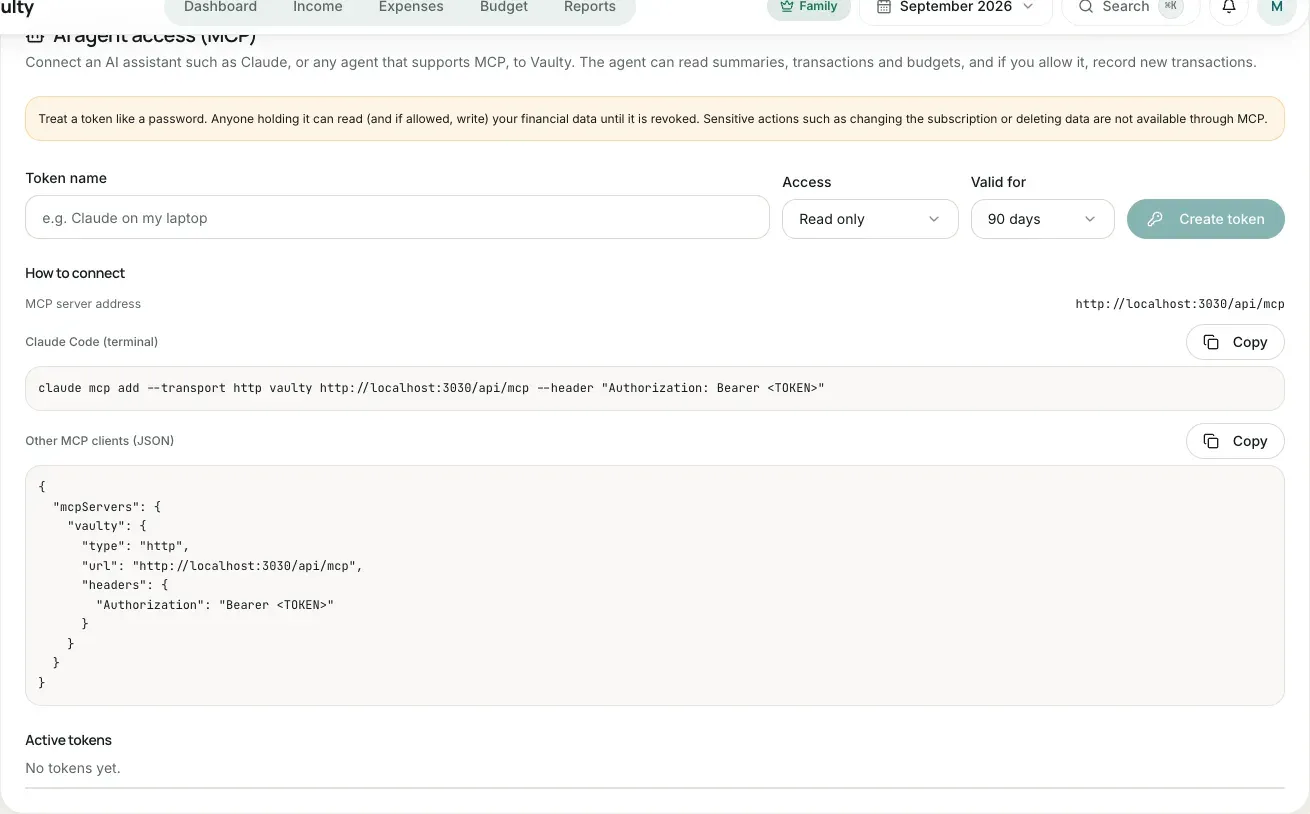
Create a token to connect an AI assistant. The full guide is in Connecting an AI agent.
Language, appearance, and currency
Section titled “Language, appearance, and currency”- Language: Bahasa Indonesia or English. Every screen, email, report, and invoice follows this choice.
- Appearance: light or dark mode.
- Display currency (Personal and above): numbers are converted for display. Your data is still stored in Rupiah.